
Blog / Performance
Exports that fail on huge projects: a recovery playbook
Large timelines stress everything: decoders, effects stacks, disk throughput, and memory. The fastest way out is not “try again harder”—it’s bisecting the timeline until the failure becomes reproducible on a small clip.
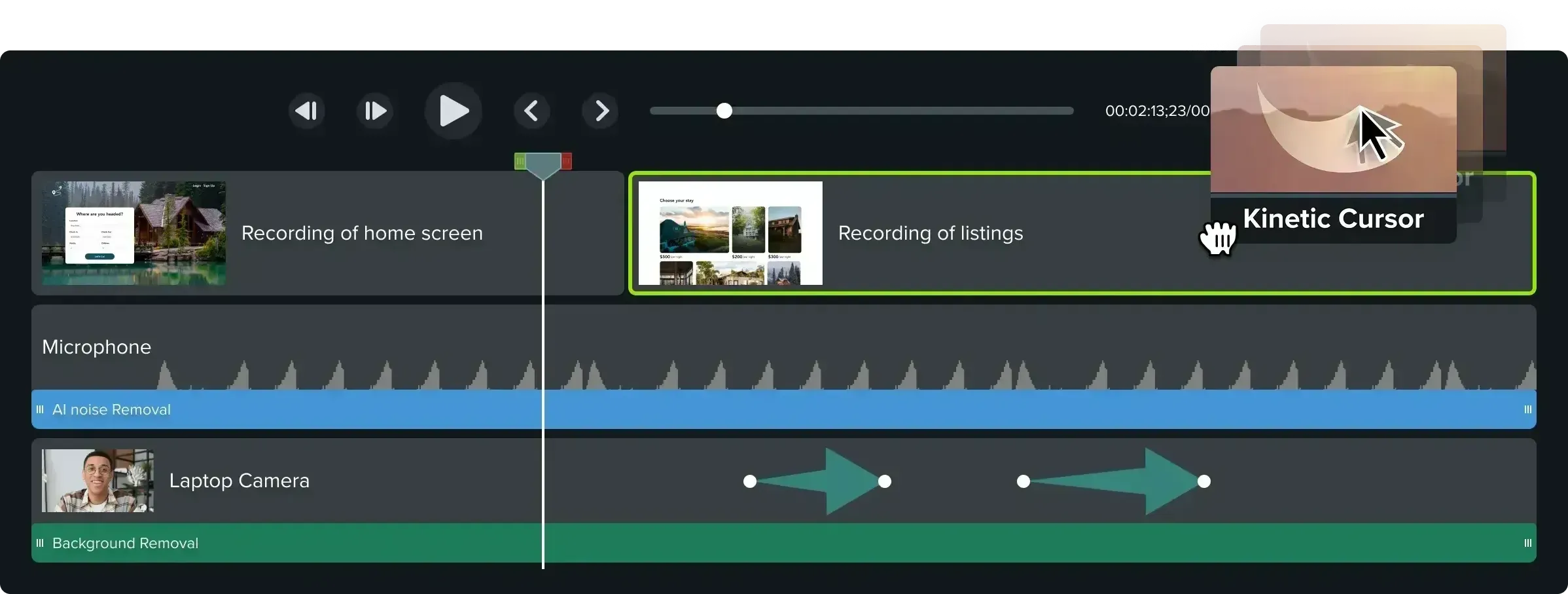
First: classify the failure
Note whether export fails instantly, at a specific percentage, or randomly. Random failures often point to thermal throttling, disk contention, or a corrupted source file. Percentage-stable failures often point to a specific effect, transition, or asset at that time range.
Bisect in 15 minutes
- Duplicate the project (safety).
- Export a 60-second slice from the beginning. Then the middle. Then the end.
- Whichever slice fails becomes your new search space—repeat until you can name the asset.
- Replace the suspect asset (re-encode externally) or remove the effect stack around it.
Divide-and-conquer delivery
For multi-chapter courses, many teams export chapters as separate masters, then assemble in a final container only if needed. This reduces peak memory, makes retries cheaper, and localizes failures to one chapter.
Codec choices that reduce pain
Ultra-high bitrate exports with heavy effects can spike I/O. If you are delivering to a platform with recompression anyway, exporting a high-quality intermediate that is easier to decode can save time—then do the final pass once the edit is locked.
Operational hygiene
Keep scratch disks fast and empty enough, close sync tools during export, and avoid recording directly to network drives if your timeline is already heavy. These sound boring because they work.